AwakePix

Free Image to Video AI — One Free Video per Account

Turn a photo, product image or illustration into a short clip with image to video AI. Your image provides the first frame; your prompt describes the action, camera movement and sound. Your first free clip is 5 seconds at 480p, with audio, no watermark and no card required. Sign in with a verified email; one free clip per account for its lifetime, for personal, non-commercial use; availability may vary at peak times.

Later renders use one-time credits with no automatic renewal; the current quote is shown in the generator before submission.

0/500
Need a starting point? Browse prompts by scene
Video
Privacy & storage

Your photo and prompt are sent to the model provider. Account free creations are saved in My creations for 365 days and can be deleted at any time; uploaded source photos are still cleaned up separately. Consented source-image and showcase copies may be kept separately. We do not train models on them; third-party handling is governed by their terms.

Loading balance…

What image to video AI does with your photo

The model receives your image as the first frame and predicts what the next few seconds would look like. It is not applying a filter or panning a camera across a static picture — it is generating new frames. That distinction explains most of what people find surprising about turning images into video, including why some clips look photographic and others fall apart.

Real image to video examples: from still to shot

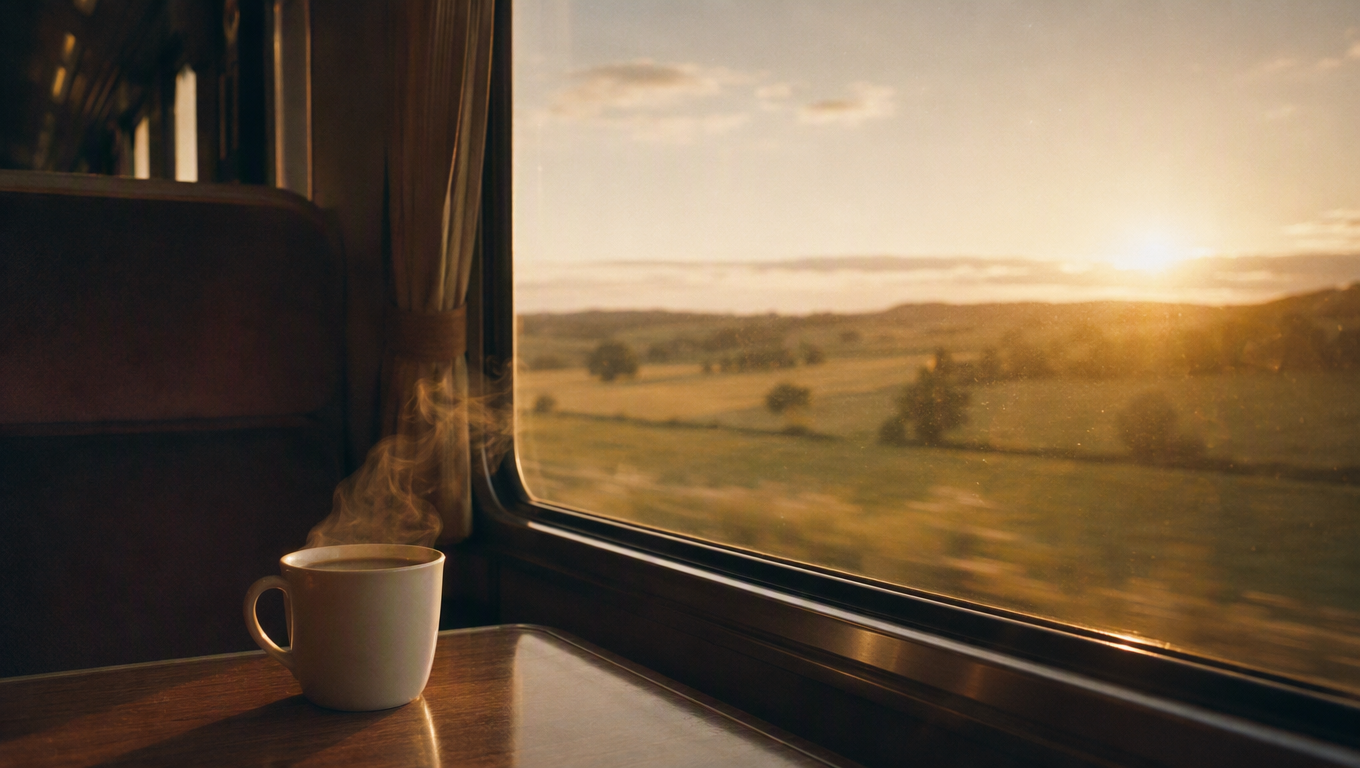
Compare the input image, output and original prompt from two completed runs: a small push-in by a train window and a multi-person street-cafe scene. These are recorded examples, not a guarantee that your image will produce the same result.

Input frame for the train-window video
Input image
Generated video

Seedance 2.5 · 5s · 720p · adaptive aspect

Original prompt

A slow, small-amplitude push-in. Keep the subject and composition unchanged.

Compare the subject outline, window edges and background as the camera pushes in. Look for details that change between the input and the generated frames.

Photo to video tutorial

How to turn an image into a video

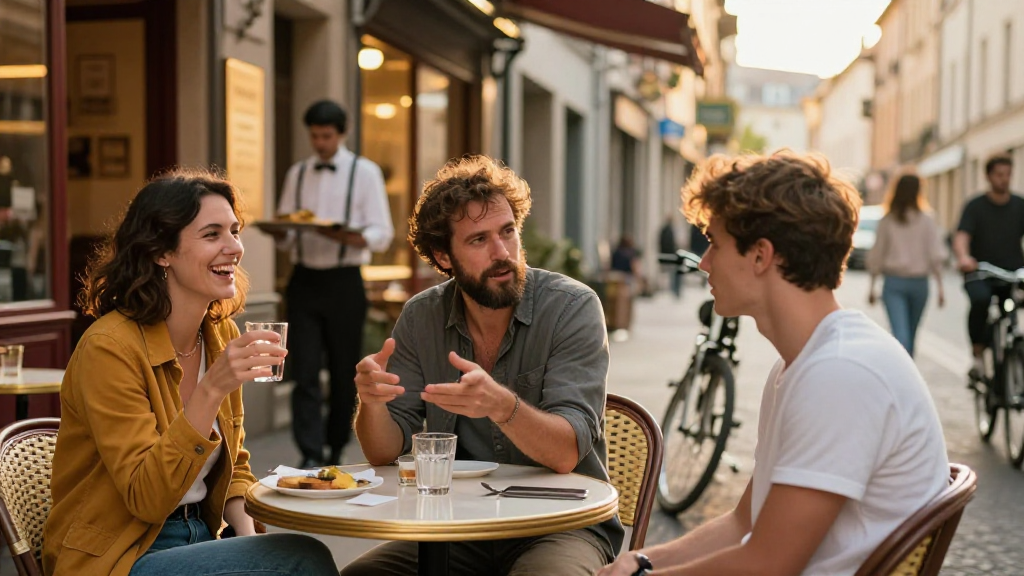
The most reliable starting point is a clear first frame and one small movement. The street-cafe sample below keeps its source image, result, original prompt and recorded settings together so you can prepare your own shot from the same evidence.

  1. 01

    Choose a clear photo with the subject fully visible.

  2. 02

    Describe one minimal movement, such as a slight push-in, rising steam or a small arm movement.

  3. 03

    Check the model, duration, quality, aspect ratio and audio before manually submitting.

  4. 04

    Inspect faces, hands, product edges and audio, then save the file while it is available.

Original source image from the real Seedance 2.0 Mini street-cafe run
Original / source frame
Result
Seedance 2.0 Mini5s · 480p · with audio · freeRecorded street-cafe run

Original prompt from this run

Camera holds still with a very slow, small push-in. The woman on the left keeps laughing and lowers her glass slightly. The bearded man in the middle continues gesturing as he speaks, hands moving gently. The young man on the right turns his head back toward the table. Behind them the cyclist rides past and the waiter walks on. Keep every face, outfit and the table setting unchanged. Ambience: quiet street cafe with soft chatter.

Three copyable scene starters

Replace the subject in a prompt with what is in your photo, then inspect the result using step four.

Scene 1

Keep the subject and composition unchanged. Add a very slow, small-amplitude push-in and gentle hair movement. Quiet natural ambience.

Scene 2

Keep the product shape, color and label-free surface unchanged. Let soft window light move slightly across it while the camera makes a slow, small push-in. No new objects.

Scene 3

Keep the original cafe scene and every face unchanged. The person on the left lowers the cup slightly, the cyclist passes behind them, and the camera holds a gentle slow push-in. Quiet street ambience.

The sample above keeps the source image, result, original prompt and settings from that run so you can compare them. You can edit the first frame before handing it into video, then inspect the face, hands or product edges after generation.

What you can create with image to video AI

Short clips for social posts

Give a portrait, pet or travel photo a few seconds of motion for a short post.

Product shots

Add slowly moving light or a small camera push to a product image. Check edges and lettering in the result; the free tier is for personal, non-commercial use.

Portraits and family photos

Add drifting hair, breathing or a small expression. Faces can change, so review the result and only upload photos you have the right to use.

Illustrations and artwork

Bring clouds, water or fabric into motion. The generated style may differ slightly from the original.

Which AI models work best for image to video?

These models support the single-image first-frame workflow on AwakePix. Compare the available durations and output quality settings, then check the current options in the generator. The settings below do not mean every combination has been tested in a real run.

If you are unsure, try one small motion with free Seedance 2.0 Mini and inspect the details first. Move to a paid model when you need higher quality or a longer clip.

Single-image first-frame model settings on AwakePix
ModelDuration (seconds)Output quality
Seedance 2.0 Mini5480p
Wan 3.05 / 10720p / 1080p
Kling 4.05 / 10 / 13 / 15720p / 1080p
MiniMax H35 / 10768p / 2K
MiniMax H3 Max5 / 10768p
Seedance 2.05 / 10720p / 1080p
Seedance 2.55 / 10720p / 1080p
Gemini Omni 1.2 Flash5 / 10 / 15720p
Gemini Omni 1.1 Flash5 / 10720p / 1080p

Seedance 2.0 Fast uses ordered reference images, a different workflow from the single first frame shown here. For multiple reference images, see the full model guide. Model guide

Image to video vs. text to video: where should you start?

Have an image? Start here

A photo, product image or illustration supplies the subject, composition and lighting. Use your prompt for what happens next: steam rising, fabric drifting or a camera push-in. The first frame provides a reference; it does not lock faces, lettering or product details in every generated frame.

Have only an idea? Use text to video

Without an input image, describe the subject, scene, lighting, action and camera in words. The model creates the scene, which suits ideas starting from scratch. To begin with a specific photo, upload it and choose a model that supports single-image input.

Open text to video

Image to video prompts: small motion survives, large motion does not

A single image does not show every angle. Start with small motion; turns, walking and expression changes require unseen details, so faces and hands may distort. Review the actual result with every model.

Best photos for image to video AI

Whatever you generate is built on the frame you hand over, so a distracting background or flat lighting carries straight into the video. If your source needs work first, the frame studio removes distractions, relights the scene or replaces the background, and hands the corrected image directly to the generator — no downloading and re-uploading in between.

How long does image to video take?

Past free runs took 158–168 seconds; actual timing varies with model, settings and queue. You can leave an optional notification email for a free task and return in the same browser; sign in to view and download it in My creations.

Is image to video free? Try one shot before you pay

A particular image may animate better than another, which is what the free tier helps you check. Inspect the free 480p result first, then decide whether to use credits from the model, duration and quality quote shown before submission.

  • 5 seconds at 480p with audio, free, one per account for its lifetime
  • Sign in with a verified email to generate
  • No watermark on the downloaded file
  • Account free creations are saved in My creations for 365 days and can be deleted at any time

Image to video AI: frequently asked questions

How long does it take to turn an image into a video?

Two past free-tier runs took 158–168 seconds. Models, settings and queueing affect the wait; those measurements do not guarantee completion time for your run. Check the current task status in the generator.

Why does my subject's face distort?

Because the model only has one frame of information. Small movement — breathing, hair drifting, a slight camera push — stays consistent with what it can see. Asking someone to turn around or walk across the room forces it to invent the back of their head and the far side of the room. Ask for the smallest movement that still tells your story.

Is the free version watermarked?

No. The downloaded file has no watermark burned in and no overlay in the player. Free clips are 5 seconds at 480p with audio, one per account for its lifetime.

Can I download the video, and in what format?

Yes. When the video is ready, click Download video to save it to your phone or computer. The file is an MP4 that common players and editing apps open directly. Downloads from the free and paid tiers have no watermark, and creations generated while signed in can be downloaded again from My creations.

What is the longest video I can make?

The free tier is fixed at 5 seconds. Paid models go up to 15 seconds: Kling 4.0, Gemini Omni 1.2 Flash, Seedance 2.0 Fast offer 15-second clips, and the other paid models go up to 10 seconds. The generator shows the durations each model offers; the credits needed change with duration and are shown before you submit.

What resolution can I get?

The free tier renders at 480p. Paid models offer 720p, and some also offer 1080p (for example Kling 4.0, Seedance 2.5, Wan 3.0); Gemini Omni 1.2 Flash, MiniMax H3 Max, Seedance 2.0 Fast are 720p only. Higher resolution needs more credits, and the generator shows the credits for your run before you submit.

Do I need an account to generate?

Free video requires sign-in and a verified email, with one video per account for its lifetime. Confirmed failures do not use the allowance; buy credits to continue after it is used. Account free creations are saved in My creations for 365 days and can be deleted at any time; source photos are still cleaned up separately. Paid work is available in account history; save the files you need.

What does a higher-quality render cost?

Cost depends on the selected model, duration and quality. Use the current credit quote shown in the generator before you submit. View credit pricing

How do I check the estimated wait?

The generator’s model list shows estimated waiting times; actual timing varies with settings and queueing. One past MiniMax H3 Max run took 57 seconds for 5 seconds at 768p; a single run does not predict other tasks.

How long are my files kept?

Free images and videos generated while signed in are saved in My creations for 365 days and can be deleted at any time. Anonymous creations remain available for 24 hours; signing in later does not extend them. Source photos uploaded for free video expire 24 hours after completion (24 hours after upload for unfinished jobs); daily cleanup normally removes them within about 48 hours. Longer result retention does not extend source-photo storage. Separately consented showcase copies may be retained; deleting a creation also removes its linked showcase copies. Paid work is available in account history. We do not train models on it; third-party handling is governed by their terms.

Do I need a card for the free video?

No card is required. The free tier needs sign-in and a verified email, is available once per account for its lifetime, and is fixed at 5 seconds, 480p, with audio and no watermark; availability may vary at peak times. The free tier is for personal, non-commercial use; check one-time credits when you need more renders.

Do credits renew automatically?

No. Later renders use one-time credit packs rather than an auto-renewing subscription; the generator shows the current credit quote before submission. View pricing

Can I use generated videos commercially?

The free tier is for personal, non-commercial use. Paid-credit creations are governed by the Terms; you still need rights to uploaded material and identifiable people, and must follow the third-party model provider’s terms before commercial use. Read commercial-use terms

Which model should I pick for a photo of a person?

Try one small motion with free Seedance 2.0 Mini and inspect the person’s details. For other resolutions, check the paid models; cost depends on the model, duration and quality, so use the current quote shown before submission. Open pricing
Keep exploring